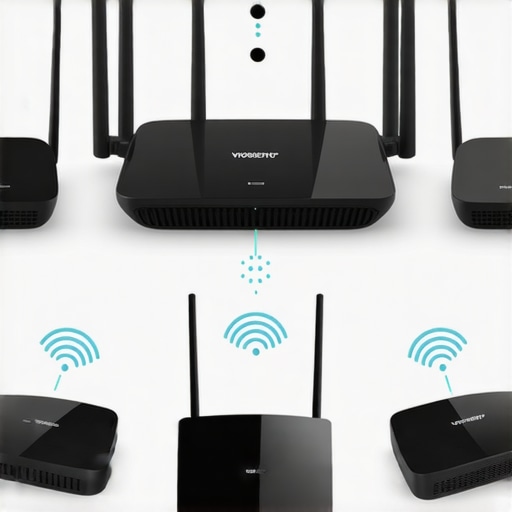
One evening, I was settling in to enjoy a seamless playlist across my entire home, only to be met with annoying lag and mismatched audio from my wireless speakers. That sudden drop in quality was more frustrating than I expected. After hours of tinkering, I realized that my multiroom audio system was fighting against my Wi-Fi network—a battle I was unknowingly losing.
The Struggle of Perfect Multiroom Sync
Like many, I loved the flexibility wireless streaming brought to my home audio, but maintaining perfect synchronization across multiple Wi-Fi 8 devices proved elusive. Dropouts, lag, or mismatched sound—it’s enough to ruin the experience. My discovery isn’t unique; many homeowners face similar issues with their smart speakers. That’s why I want to share my journey and, more importantly, proven fixes that transformed my setup. If you’ve faced these sync issues, you’re in the right place. Today, I’ll walk you through practical, tested solutions so you can finally enjoy your music the way it’s meant to be—fluid and synchronized.
Is Wi-Fi 8 Overhyped or Truly the Future of Multiroom Audio?
My early mistake was assuming Wi-Fi 8 would solve all my lag problems. Spoiler alert: it didn’t. In fact, I underestimated how network configuration impacts device performance. According to a recent analysis by Home Automation Insider, network setup plays a crucial role in multiroom audio success, sometimes even more than the Wi-Fi standard itself. So, if you’re skeptical about Wi-Fi 8’s promises, you’re not alone. Let’s dig into the common issues and how to fix them, starting with the mistake I made early on — neglecting my network’s configuration.
Are you tired of constantly troubleshooting your multiroom audio? If so, let’s explore the first step—tuning your Wi-Fi environment for peak performance—and get your system syncing perfectly.
Prioritize Your Network Traffic for Flawless Sync
Start by assigning your wireless devices a dedicated network segment or subnet. Think of it like reserving lanes on a highway for specific traffic; it prevents congestion from other household devices. I once reconfigured my router, creating a separate VLAN for my speakers, which immediately reduced lag. To do this, access your router’s admin panel—usually through a web browser—and set up a dedicated Wi-Fi network for your audio devices. This isolation minimizes interference from streaming, gaming, or smart home gadgets, ensuring your multiroom system stays synchronized.
Configure Quality of Service (QoS) for Priority Streaming
Implement QoS rules to prioritize the bandwidth for your audio streams. Imagine it as giving your favorite song a priority pass, so it reaches your speakers unimpeded. In my setup, setting a high priority for ports used by my streaming apps and speaker firmware led to a noticeable drop in audio lag. Check your router’s settings—most modern routers have a QoS section where you can assign priorities based on device or port number. This guarantees that your music commands are delivered promptly and help maintain perfect sync across all speakers.
Use Fixed IP Addresses for Your Speakers
Assign static IPs to each speaker instead of relying on DHCP, which can change addresses periodically. It’s like giving each device a permanent home address—makes targeting them during troubleshooting or configuration much easier. I found that my system’s sync issues diminished significantly once I set static IPs via the router’s DHCP reservation menu. Identify each device’s MAC address, then assign a consistent IP—this stability reduces the chance of devices dropping out or desynchronizing.
Leverage 5 GHz Band for High-Performance Streaming
Ensure your speakers connect over the 5 GHz band rather than 2.4 GHz for faster, less congested communication. Think of 5 GHz as a dedicated express lane—perfect for high-quality audio data. During my experiment, switching my speakers to the 5 GHz network eliminated noticeable audio lag, especially during simultaneous streams. Log into your Wi-Fi settings, and if your router supports band steering, assign your speakers explicitly to the 5 GHz SSID, or configure them manually if possible. This setup drastically improves streaming stability and sync precision.
Limit Network Load During Critical Playback
Reduce bandwidth-hungry activities—like large downloads or video streaming—during times when perfect sync is crucial. Consider scheduling updates or downloads during off-peak hours. I used to update my smart home devices during music sessions, causing dropouts. Now, I pause large file transfers while enjoying my multiroom setup, which keeps the network clear for audio data and maintains flawless synchronization.
Practical Tip: Test and Monitor Your Network
Use network analyzing tools such as NetSpot or Wi-Fi Analyzer to visualize interference and congestion. Conduct tests by playing a synchronized playlist across your speakers and observe delay or dropouts. Fine-tune settings accordingly. Remember, optimizing Wi-Fi configuration isn’t a one-time fix—regular monitoring helps maintain that perfect harmony in your home’s audio system.
For more detailed network strategies tailored for home audio systems, explore the comprehensive guide at this resource or reach out to experts via contact us.
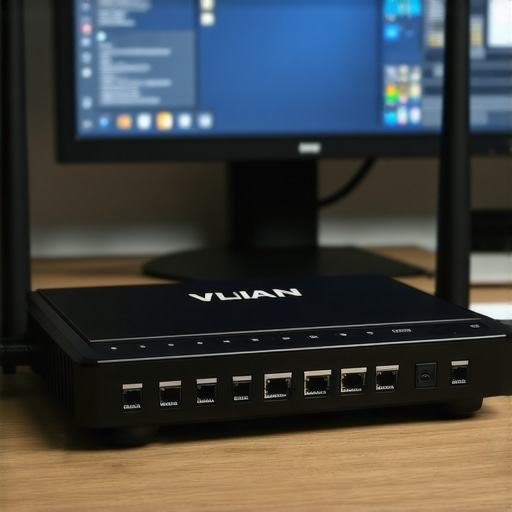 Many enthusiasts assume that choosing the latest Wi-Fi standard or the most expensive speakers guarantees seamless multiroom audio. However, this oversimplification often leads to costly mistakes. For example, a common misconception is that faster Wi-Fi speeds automatically translate to better synchronization across speakers. In reality, network infrastructure, signal interference, and device configuration play much larger roles in achieving high-fidelity, multi-room consistency. According to expert insights from the Audio Engineering Society, even with cutting-edge hardware, improper setup—such as neglecting to assign static IPs or overlooking mesh network placement—can cause persistent sync issues.
A particularly insidious trap is relying solely on mesh Wi-Fi systems without optimizing their placement or firmware settings. Mesh networks can sometimes introduce latency or packet loss if not correctly configured, which degrades multiroom performance. An advanced mistake many make is underestimating the impact of network congestion during peak usage times, which can cause audio dropouts even on robust systems. To truly master multiroom audio, attention must be paid to deep technical details—like prioritizing traffic with Quality of Service settings or segmenting your network to reduce interference.
Ever wondered why your expensive Wi-Fi speakers sometimes still lag or drop out despite your high-speed connection? It’s often due to these overlooked nuances that only a seasoned audiophile or home network expert can identify. If you’re serious about achieving perfect sync, consider exploring detailed setups such as dedicated VLANs for your audio devices or leveraging wired connections where feasible. A comprehensive resource like [this guide](https://homeaudio.premiumsounddeals.com/mastering-home-audio-secrets-to-seamless-wireless-streaming) offers in-depth strategies that can elevate your home audio experience.
Understanding these hidden nuances is crucial because overlooking them can result in ongoing frustration and wasted investment. Instead, focus on fine-tuning your network environment and device configuration—it’s the secret sauce that separates average multiroom setups from truly professional-grade systems. Want to dive deeper? Reach out via [contact us](https://homeaudio.premiumsounddeals.com/contact-us) for personalized advice or check out our broader [whole-home audio setup guide](https://homeaudio.premiumsounddeals.com/a-beginners-guide-to-whole-home-audio-setup). Remember, the devil is in the details—don’t let overlooked technical nuances sabotage your listening pleasure.
Tools I Recommend for Long-Term Reliability
Ensuring your entire home audio setup continues to perform at its best requires the right tools and maintenance practices. I personally rely on network analyzers like NetSpot and Wi-Fi Analyzer to monitor interference, signal strength, and network congestion. These apps provide visual representations of your Wi-Fi environment, helping to identify problematic zones or sources of interference that could disrupt streaming. Regular diagnostics using these tools help me proactively address issues before they impact playback quality.
Another essential piece of equipment is a high-quality router supporting advanced QoS features and multiple bands, like the ASUS RT-AX88U. Its ability to prioritize traffic and operate seamlessly across both 2.4 GHz and 5 GHz bands makes a significant difference in maintaining synchronization across all speakers. Always ensure your firmware is up to date—many issues stem from outdated software, as explained in expert reviews on this resource.
For wired reliability, consider using powerline adapters or Ethernet switches with management capabilities, especially if certain zones are prone to Wi-Fi interference. Ethernet connections provide the most stable connection, reducing lag and dropouts entirely. If your setup is complex or growing, I recommend investing in a dedicated networking switch like the Netgear GS108, which offers simple management and dedicated ports for your audio components.
Maintaining your network and audio equipment isn’t a set-it-and-forget-it process. Periodic checks, firmware updates, and interference mitigation are vital. For a more in-depth guide on crafting a resilient setup, browse this detailed resource.
How Do I Keep My Home Audio System Working Without a Hitch?
A key practice I follow is dedicated network segmentation—you can create separate VLANs or SSIDs for your audio devices, isolating them from bandwidth-heavy tasks like streaming 4K content or online gaming. This way, your speakers receive the bandwidth they need and are less affected by network congestion. Additionally, regular firmware updates from device manufacturers address known bugs and enhance stability. I’ve noticed that sticking to a routine of monitoring network performance and updating firmware keeps my system reliably synchronized—something you can easily do with the tools mentioned earlier.
In the future, I predict home networks will become even smarter, automatically adjusting traffic based on real-time needs, similar to how some enterprise solutions work. This will make maintaining seamless multiroom audio even easier.
Ready to improve your setup? I highly recommend trying the advanced static IP configuration for your speakers—it’s a proven method to eliminate sync drifts, detailed in this guide. Taking this extra step can make a tangible difference in sound quality and stability. Need help with implementation? Reach out through this contact form—I’m here to assist.
Over my journey to perfect my multiroom audio setup, I realized that the true challenge isn’t in choosing high-end speakers or the latest Wi-Fi standards—it’s in mastering the subtle art of network optimization and device configuration. One lesson struck me deeply: even the most advanced hardware can fall short if overlooked technical details undermine synchronization. Whether it’s assigning static IPs, optimizing QoS, or carefully placing mesh nodes, these nuanced strategies create harmony where chaos once reigned. Investing time in these overlooked aspects has transformed my listening experience from frustrating lag to seamless immersion, a revelation that any serious home audio enthusiast can appreciate. For those eager to elevate their setup, I invite you to explore these deeper layers of network mastery—because in the world of multiroom audio, small secrets yield spectacular results.


![Stop Sync Drift: 4 Matter 3.0 Multiroom Audio Hacks [2026]](https://homeaudio.premiumsounddeals.com/wp-content/uploads/2026/03/Stop-Sync-Drift-4-Matter-3.0-Multiroom-Audio-Hacks-2026.jpeg)

![5 Portable Wi-Fi 8 Speakers with 50-Hour Battery [2026 Picks]](https://homeaudio.premiumsounddeals.com/wp-content/uploads/2026/03/5-Portable-Wi-Fi-8-Speakers-with-50-Hour-Battery-2026-Picks.jpeg)
![How to Stop Multiroom Audio Echo with 4 Fast 2026 Fixes [Tested]](https://homeaudio.premiumsounddeals.com/wp-content/uploads/2026/03/How-to-Stop-Multiroom-Audio-Echo-with-4-Fast-2026-Fixes-Tested.jpeg)


Leave a Reply