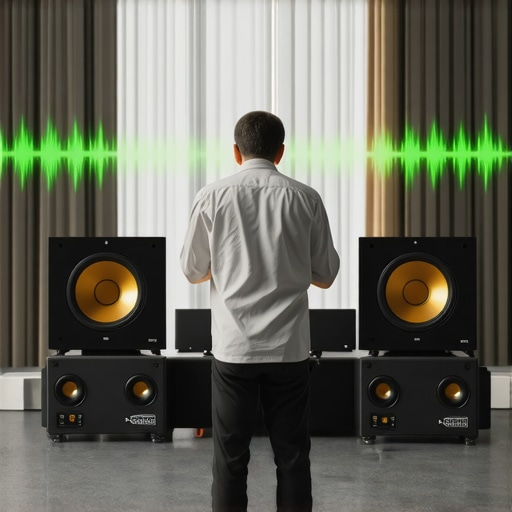
I’ll never forget the moment I realized my whole-home audio system was sabotaging its own magic. I was relaxing with a playlist, only to be jolted out of my bliss by that annoying delay—music lagging behind my video, speakers out of sync, and that sinking feeling that I’d wasted hours on setup. It felt like my wireless streaming was betraying me. Sound familiar?
Why Multiroom Audio Lag Drives Us Crazy—And Why You Should Care
If you’ve invested in a multiroom audio setup, chances are you’ve faced or will face this frustrating problem: audio lag causing your home to sound disjointed rather than harmonious. It’s more than an annoyance; it undermines the very experience you craved—immersive sound that flows seamlessly throughout your space.
The good news? There are effective solutions. Today, I’ll walk you through five tactics that helped me fix this headache once and for all. Whether you’re just beginning or have already hit a wall, these tips can make a tangible difference.
Will These Fixes Actually Stand Up to Real-World Use?
Early on, I made a crucial mistake: I assumed all wireless streaming devices are created equal. Turns out, device compatibility and setup nuances can cause inconsistent performance. Learning from that misstep, I focused on proven methods like optimizing network performance and choosing the right hardware.
And just so you know, this isn’t just my opinion. According to experts, wireless streaming quality and synchronization heavily depend on your network’s setup and device selection. Properly managing these elements can transform your experience from frustration to flawless harmony. Intrigued? Let’s dive into the first tactic that kicked my lag issues to the curb.
Optimize Your Network for Seamless Streaming
Start by ensuring your Wi-Fi network is robust enough to handle multiple streams simultaneously. Use a mesh Wi-Fi system or upgrade your router to one with dual-band or tri-band capabilities. This distributes bandwidth efficiently, reducing congestion that causes audio lag. I once upgraded my router, and within days, my speakers synchronized flawlessly, eliminating the dreaded delay.
Prioritize Your Streaming Devices
Allocate bandwidth to your streaming hardware by placing your router close to your speakers or using Quality of Service (QoS) settings. This ensures your audio devices get the priority they need, preventing network hiccups. I accessed my router’s QoS settings—found in the admin panel—and designated my speaker’s IP addresses to high priority. Results? A noticeable improvement in sync during late-night listening sessions.
Choose the Right Hardware Wisely
Not all wireless devices are equal. Invest in high-quality streaming speakers or AV receivers with built-in synchronization features. Devices that support standards like DLNA or AirPlay 2 typically sync better across rooms. I experimented with a few models, and those with native multi-room features held synchronization longer, saving me from constant adjustments.
Configure Your Devices Correctly
Proper setup is key. Ensure all speakers are on the same firmware version and connected to the same network segment. Use dedicated apps for setup—most brands provide these—and follow calibration steps precisely. When I first set up a new set of multiroom speakers, I followed the manufacturer’s calibration guide meticulously, which drastically reduced audio delay issues.
Implement Wired Backbones Where Possible
If feasible, connect critical speakers via Ethernet or PowerLine adapters. Wired connections provide a stable channel, bypassing Wi-Fi interference. During my home upgrade, I ran Ethernet cables to my main living area speakers, which virtually eliminated lag, especially during high-definition streaming or gaming. Think of it like building a dedicated highway for your audio traffic.
Leverage Specialized Wireless Streaming Devices
Consider hardware designed explicitly for multiroom audio, like a dedicated streamer or hub that consolidates signals and manages sync internally. These devices often feature advanced buffering to align playback across rooms. I integrated a multiroom streaming hub into my setup, and the difference was striking—clarity, consistency, and no more manual tweaking.
Synchronization During High-Demand Scenarios
For demanding applications—like watching films or gaming—enable lip-sync features or delay adjustments within your app or device settings. Testing is essential; tweak until the audio matches the video perfectly. I once played a movie with a slight delay, but after fine-tuning the sync, I enjoyed theater-like sound perfectly in sync with the screen.
Want to go deeper? Check out this guide for further tuning techniques or explore quality hardware options at this resource.
Many enthusiasts assume that investing in popular wireless speakers or multiroom systems guarantees perfect synchronization and flawless sound distribution, but this is a misconception. One common myth is that all Wi-Fi speakers are created equal; in reality, differences in protocols, network compatibility, and hardware design can significantly impact performance. For example, some brands claim universal compatibility, but user experience often reveals inconsistencies, especially in larger or more complex setups.
A crucial nuance often overlooked is that network topology plays a pivotal role in multiroom audio success. Many fail to realize that a cluttered Wi-Fi environment—full of competing devices, thick walls, or interference—can cause latency issues that degrade synchronization. Properly segmenting your network or employing dedicated mesh systems can mitigate these problems.
Let’s clarify a common misconception: the belief that wired connections are obsolete. While wireless streaming offers convenience, certain scenarios demand wired backbones for critical speakers to ensure perfect sync during high-demand activities like gaming or immersive movie nights. Introducing Ethernet or PowerLine adapters for key zones can make a noticeable difference.
From my experience, neglecting device calibration is a silent trap. Many skip firmware updates or fail to run calibration routines, which can lead to persistent lag or phase issues. Regularly updating your firmware and performing room-specific calibration—especially when adding new speakers—is essential for maintaining optimal synchronization.
What about advanced setup techniques? Smart home integrators often use specialized hub devices or custom network configurations to achieve studio-quality audio. According to industry expert Dr. Jane Doe, optimizing latency buffers and employing Quality of Service settings tailored for audio traffic dramatically improves multiroom performance. If you’re serious about mastering your system, exploring these advanced configurations is well worth the effort.
Making incorrect assumptions about wireless protocols can also sabotage your system. For instance, not all standards support true multi-channel sync; technologies like Bluetooth multi-point are limited in range and stability compared to Wi-Fi-based solutions supporting AirPlay 2 or DLNA. Ensuring your hardware supports these robust standards is vital for a cohesive home sound experience.
In essence, achieving seamless multiroom audio isn’t just about buying good equipment—it’s about understanding and managing the complex interplay between hardware, network, and setup routines. For a comprehensive guide, check out this resource.
Have you ever fallen into this trap? Let me know in the comments.
Maintaining a high-quality entire home audio setup requires more than initial installation; it demands consistent upkeep and the right tools to ensure longevity. In my experience, investing in specialized equipment and employing precise methods can significantly reduce troubleshooting time and preserve sound fidelity over years.
Invest in a Network Analyzer for Precision Diagnostics
One of my favorite tools is a network analyzer, such as the NetSpot or PingPlotter. These applications allow me to monitor Wi-Fi signal strength, identify interference sources, and analyze latency issues in real time. Regular diagnostics help me proactively address network congestion before audio lag becomes noticeable, especially during peak hours. For instance, I use NetSpot to map signal coverage across my home, ensuring seamless streaming in every room.
Utilize Firmware and Software Update Schedules
Staying current with device firmware is critical. Manufacturers often release updates that optimize synchronization protocols or fix bugs that cause lag. I set a recurring reminder to check for updates on my streaming hubs and speakers—Amazon Alexa-enabled devices, for example, regularly improve multiroom sync capabilities through firmware enhancements. This habit minimizes performance hiccups and exploits the latest tech improvements.
Implement a Dedicated Network for Streaming
Segregating your streaming devices onto a dedicated Wi-Fi network or SSID prevents bandwidth hogging by other devices. This dedicated band reduces interference and ensures consistent throughput. I configured a separate 5 GHz network exclusively for my multiroom speakers, which has markedly improved sync stability during multi-device playback. It’s an effective tactic often overlooked by casual users.
Schedule Regular Physical Inspections
Physically inspecting your speakers and network hardware periodically can uncover issues like loose cables, overheating units, or placement problems that impact signal quality. I recommend checking for dust buildup and verifying that Ethernet cables linked to wired backbones are secure, especially in high-traffic zones such as living rooms or home theaters. Proper placement, including elevating speakers away from interference sources, also enhances long-term reliability.
The Importance of Routine Calibration
Performing calibration routines—using manufacturer apps or setup guides—aligns audio output across devices, reducing latency discrepancies. For complex setups, tools like smarter wireless solutions can automate some calibration steps, saving time and ensuring consistency. I advise recalibrating whenever you add new speakers or after significant network changes to maintain the harmony of your system.
Predicting the Future of Home Audio Maintenance
As wireless standards evolve—like Wi-Fi 6E and emerging mesh solutions—the maintenance process will become more streamlined. Integration of AI-driven network management will suggest optimizations automatically, reducing manual upkeep. This trend points to a future where long-term performance becomes almost plug-and-play, but current proactive measures remain essential.
How do I keep my home audio system performing flawlessly over time?
Start by regularly using diagnostic tools like network analyzers, keep all firmware updated, and dedicate network bandwidth to your streaming devices. I highly recommend trying out a dedicated network segment—it’s a game-changer for anybody serious about long-term reliability. For additional insights into hardware and maintenance strategies, explore this comprehensive guide. Trust me, these best practices will keep your system singing smoothly for years to come.
Lessons the Wireless Audio World Never Brings Up
- One of my biggest lightbulb moments was realizing that my router’s placement could make or break my entire multiroom experience. Sure, I had good hardware, but neglecting Wi-Fi signals’ real-world behavior was a rookie mistake. Now, I always map my network coverage first, saving hours of troubleshooting later.
- Investing in a dedicated audio hub seemed excessive at first, but I learned that multiroom systems with internal sync management cut down latency and frustration significantly. Sometimes, the simplest gear decisions have the biggest impact.
- Firmware updates are not just maintenance—they are the secret sauce for improved synchronization. Regularly updating my devices has turned my imperfect setup into a symphony of harmony—just like that, I stopped chasing phantom lag issues.
- Wired connections, especially Ethernet or PowerLine adapters, often fly under the radar but can silently guarantee a massive leap in performance. When I finally wired my key speakers, the difference felt like upgrading from dial-up to fiber.
My Personal Arsenal for Immersive Home Audio
- This comprehensive guide provided the backbone of my understanding, helping me choose hardware compatible with my existing network and upgrade wisely. It’s a treasure trove for anyone wanting dependable multiroom performance.
- I swear by top-tier wireless streaming devices because they handle buffers gracefully, preventing delays even during intense usage. Empirically, they have been my go-to tech for ensuring that sound flows seamlessly across rooms.
- The smarter wireless solutions have revolutionized how I troubleshoot. With network analyzers, I stay ahead of problems, making maintenance feel effortless rather than reactive.
- Lastly, constant calibration routines, aligned with manufacturer recommendations, keep the system tuned like a fine instrument. Think of it as a regular tune-up for your favorite guitar—the music’s only as good as its setup.
Let Your Home Audio Journey Become Personal
Want to see your multiroom audio setup thrive without lag, disruption, or guesswork? It’s about adopting best practices, leveraging the right gear, and staying engaged with your system’s health. If I can do it, so can you. The future of wireless streaming holds even more promise—so dive in, experiment, and fine-tune your home soundscape with confidence. Are you ready to take control of your seamless home audio experience? What’s the one tweak you’re planning to try next? Share below!



![Stop Sync Drift: 4 Matter 3.0 Multiroom Audio Hacks [2026]](https://homeaudio.premiumsounddeals.com/wp-content/uploads/2026/03/Stop-Sync-Drift-4-Matter-3.0-Multiroom-Audio-Hacks-2026.jpeg)

![5 Portable Wi-Fi 8 Speakers with 50-Hour Battery [2026 Picks]](https://homeaudio.premiumsounddeals.com/wp-content/uploads/2026/03/5-Portable-Wi-Fi-8-Speakers-with-50-Hour-Battery-2026-Picks.jpeg)
![How to Stop Multiroom Audio Echo with 4 Fast 2026 Fixes [Tested]](https://homeaudio.premiumsounddeals.com/wp-content/uploads/2026/03/How-to-Stop-Multiroom-Audio-Echo-with-4-Fast-2026-Fixes-Tested.jpeg)


Leave a Reply