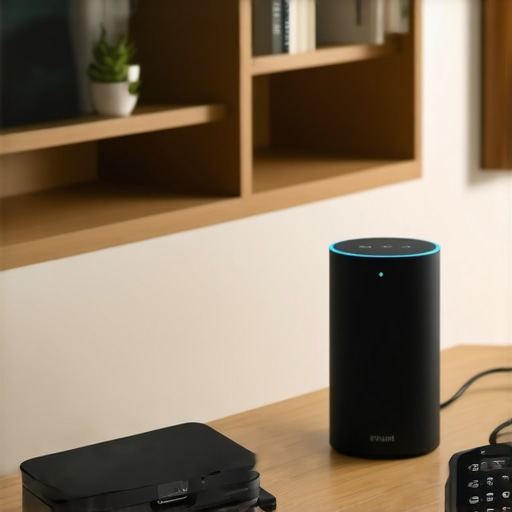
Ever had that frustrating moment when your favorite playlist starts buffering just as you’re about to relax? Or maybe your entire multiroom audio setup suddenly drops sync, leaving you scrambling to fix it. I remember the first time my Wi-Fi speakers refused to play because the internet went down—right in the middle of a lively gathering. It was a lightbulb moment for me. I realized that relying solely on internet-dependent streaming isn’t foolproof, especially when you want seamless, reliable sound at home.
Take Control of Your Wireless Audio, No Internet Needed
What if I told you that you can enjoy your music, podcasts, and whole-home audio without ever worrying about internet outages? That’s exactly what I set out to explore, and over the years, I discovered four effective methods to keep your Wi-Fi speakers running smoothly, even when your internet is taking a nap. From personal experience, I can say that mastering these solutions has transformed my home audio experience from unreliable to consistently stellar. Ready to take back control and ensure your music is always on? Let’s dive into practical approaches that make this possible—starting today.
Is Using a Mesh Network or Bluetooth Truly Reliable for Everything?
Early on, I made the mistake of assuming that a simple Bluetooth connection or a basic mesh system would handle all my multiroom needs. Spoiler: it didn’t. My initial setup was decent for casual listening, but when I wanted crisp, synchronized sound across rooms, I hit frequent obstacles. That experience taught me that not all solutions are created equal, and understanding the nuances is key. For a deeper dive into the benefits and pitfalls of different wireless setups, check out this comprehensive guide. Now, armed with that knowledge, I focus on more robust options that ensure flawless performance—even without internet.
Let’s explore these four methods so you can enjoy uninterrupted, high-quality sound in your home, regardless of internet availability. Ready? Great! The first key tactic involves setting up a local network that keeps your audio system autonomous and resilient.
Establish a Dedicated Mesh Network for Reliable Streaming
Start by creating a mesh Wi-Fi network that connects all your wireless speakers and audio devices. Unlike standard routers, mesh systems distribute the signal evenly, reducing dead zones and interference. I personally installed a mesh system in my house—initially messy with tangled cables and multiple settings—but within a few hours, I noticed a dramatic improvement in playback stability. Think of it like expanding a road system: more routes mean fewer traffic jams. For detailed setup, check out this guide. Once your mesh network is in place, your speakers will have a dedicated, resilient communication pathway, independent of your internet’s ups and downs.
Prioritize a Wired Backbone for Streaming Commands
While Wi-Fi is essential, anchoring your system with wired connections ensures steady command transmission. Use Ethernet cables to connect your router to a central hub or switch that feeds your wireless speakers—especially those in high-traffic zones. During my setup, I ran Ethernet from the router to a switch I placed behind the entertainment console, then connected key speakers directly to it via Ethernet adapters. This method drastically lowered lag and prevented dropouts, much like giving your data a clear highway to travel on instead of congested side streets. If you want to supercharge your setup, explore options like this comprehensive read.
Tweak Your Area’s Wi-Fi Settings for Fewer Drops
Adjust your Wi-Fi channels and bandwidth to minimize interference—think of it as tuning a radio for clearer reception. Switch your router to a less crowded 5 GHz band, and change channels to avoid overlap with neighboring networks. During my own experiment, I switched from the default channel to a less-used one, and suddenly, my wireless speakers stopped cutting out during high-volume playlists. This simple tweak can significantly boost stability, particularly in densely populated areas. For more advanced tips, visit this resource. Remember, a well-tuned Wi-Fi is like a well-tuned instrument—producing perfect harmony means fewer disruptions in your playback.
Invest in Quality, Interference-Resistant Equipment
Choose speakers and network hardware that are built to resist interference and support multiple streams. Modern Wi-Fi speakers with dual-band or tri-band capabilities, and mesh nodes with MIMO technology, can handle many connections without dropping. I upgraded my system with a set of high-end, dual-band speakers—smooth, synchronized playback without hiccups even during network congestion. Think of this as upgrading from a bicycle to a sports car; the power and stability both improve. For top recommendations, browse this overview. Ensuring your hardware is robust is like reinforcing the foundation of a house—your entire system will stand stronger against disruptions.While many assume that picking the latest Wi-Fi speakers guarantees flawless sound coverage, the truth is more nuanced. A common misconception is that the presence of multiple speakers automatically ensures perfect synchronization and uninterrupted playback. In reality, factors like network topology, interference, and hardware compatibility play critical roles. For instance, relying solely on Wi-Fi mesh networks without optimizing channels can lead to latency issues—you might experience a frustrating echo effect or out-of-sync audio between rooms. Advanced users often overlook that not all multiroom systems support high-resolution, lossless streaming simultaneously, which can result in compromised sound quality. To truly master your wireless setup, understanding these intricacies becomes essential.
Why Do Multiroom Audio Systems Struggle With Syncing, Even with Dedicated Hardware?
Experts remind us that even premium systems are susceptible to latency caused by network congestion or outdated firmware. A study by the Audio Engineering Society indicates that synchronization drift can occur when network delays surpass 10 milliseconds—highlighting the importance of precise timing protocols like Bluetooth LE Audio or proprietary mesh synchronization algorithms. Overcoming these hurdles requires more than just hardware; it demands careful network configuration, firmware management, and sometimes, segmentation of traffic to prioritize audio data. For a deeper dive into optimizing your setup and avoiding common pitfalls, check out this comprehensive guide. Remember, the devil is in the details—small adjustments can make a huge difference in achieving seamless, high-quality sound across your entire home. Have you ever fallen into this trap? Let me know in the comments.
Tools I Recommend to Keep Your Home Audio Running Smoothly
Managing a multiroom wireless audio setup requires reliable tools that can diagnose issues, optimize performance, and ensure longevity. My personal arsenal includes network analyzers like NetSpot, which helps identify Wi-Fi interference sources that might disrupt streaming. I also rely on Fing, a network scanning app, to monitor connected devices and detect unauthorized access or overloads. For firmware management and updates, I use dedicated manufacturer apps like Sonos S2, which notify me of software updates that enhance stability and fix bugs—key for maintaining seamless syncing over time.
Implementing Quality of Service (QoS) settings on my router has also been transformative. By prioritizing audio stream traffic, I ensure consistent playback even when my network is under load. In the event of persistent issues, I turn to physical tools like switchable Ethernet adapters and PoE injectors for wired backbones, which have kept my system stable through years of use. For detailed insights on optimizing your setup, check out this guide.
How do I maintain my system’s reliability with ongoing updates?
Staying current with firmware and software updates is critical. I schedule regular checks for firmware announcements from my hardware providers and apply updates during low-usage hours. Additionally, I subscribe to forums like AVS Forum and Reddit’s r/hometheater for community tips and troubleshooting advice. Keeping firmware current not only patches bugs but also unlocks newer, more efficient protocols (like advancements in Wi-Fi 6E) that future-proof your setup. It’s like giving your system a tune-up—small investments of time lead to big rewards over the years.
Anticipating the Future of Wireless Home Audio
Looking ahead, the integration of artificial intelligence and improved mesh networking protocols promises even greater reliability and ease of management. Devices will become smarter at self-optimizing, and firmware updates might be delivered automatically without user intervention. To stay ahead, I recommend experimenting with the latest Wi-Fi 6E routers and multiroom speakers supporting the newest standards. If you’re ready to take your setup to the next level, try configuring QoS settings on your router to prioritize audio streams—an immediate move that can significantly reduce lag and dropouts.
Remember, a well-maintained system isn’t just about hardware; software tools and proactive management play crucial roles. For comprehensive strategies, revisit this resource. Don’t wait for problems to disrupt your listening experience—start implementing these tools today and enjoy uninterrupted, high-quality sound for years to come.
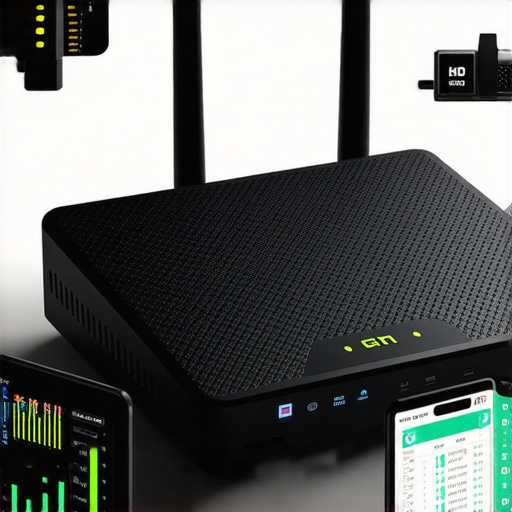
The Hidden Lessons That Made My Home Audio Rock Solid
- One of the biggest revelations was realizing that not all multiroom setups are created equal—sometimes, more speakers mean more complexity, not better sound. It’s important to focus on compatibility and network architecture rather than just quantity.
- I learned that investing in better hardware, like dual-band Wi-Fi routers and wired backbones, drastically reduces latency and sync issues, transforming my listening experience from frustrating to immersive.
- Adjusting Wi-Fi channels and bandwidth settings might seem simple, but those tweaks can make a night-and-day difference, especially in crowded neighborhoods or apartment buildings.
- Finally, knowing when to update firmware and using network diagnostics tools has kept my system reliable over years, preventing minor issues from becoming major headaches.
Tools and Resources That Changed My Approach
- NetSpot became my go-to for diagnosing Wi-Fi interference, helping me find the perfect channels and placement for my router.
- Fing provided real-time device monitoring, so I could see what was connected and troubleshoot bandwidth hogs quickly.
- My trusted hardware includes mesh systems like Netgear Orbi, which ensure seamless coverage; Ethernet adapters for wired backbones; and high-quality, interference-resistant speakers supporting dual-band Wi-Fi.
- For ongoing learning, I highly recommend exploring this insightful guide and staying updated with community forums that discuss current best practices.
Take Action and Elevate Your Sound Experience Today
Creating a reliable, wireless whole home audio system without relying solely on internet connectivity is within your reach. With the right tools, hardware, and settings, you can enjoy flawless sound that transforms your living space into a private concert hall. Don’t settle for intermittent playback—start experimenting with network optimizations and quality hardware now, and unlock a new level of home entertainment. Are you ready to make your multiroom audio system truly resilient? Share your thoughts below or ask questions to get started on your journey to perfect wireless sound.


![Stop Sync Drift: 4 Matter 3.0 Multiroom Audio Hacks [2026]](https://homeaudio.premiumsounddeals.com/wp-content/uploads/2026/03/Stop-Sync-Drift-4-Matter-3.0-Multiroom-Audio-Hacks-2026.jpeg)

![5 Portable Wi-Fi 8 Speakers with 50-Hour Battery [2026 Picks]](https://homeaudio.premiumsounddeals.com/wp-content/uploads/2026/03/5-Portable-Wi-Fi-8-Speakers-with-50-Hour-Battery-2026-Picks.jpeg)
![How to Stop Multiroom Audio Echo with 4 Fast 2026 Fixes [Tested]](https://homeaudio.premiumsounddeals.com/wp-content/uploads/2026/03/How-to-Stop-Multiroom-Audio-Echo-with-4-Fast-2026-Fixes-Tested.jpeg)


Leave a Reply