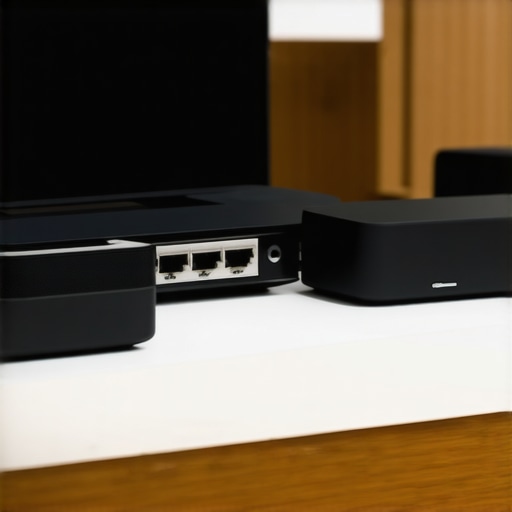
One evening, I was relaxing in my living room, streaming my favorite playlist through my multiroom system. Suddenly, the music skipped, hiccuped, and then stuttered to a halt. Frustration welled up as I realized my entire home’s audio experience was compromised. That moment was a real lightbulb—if you’re serious about seamless, high-quality wireless sound in 2026, you can’t just leave your Wi-Fi network to chance. We’ll explore how creating a dedicated subnet for your home audio gear can eliminate those pesky drops and lag, ensuring your system sounds as good as it should.
A Wake-Up Call for Serious Home Audio Enthusiasts
Many home audio lovers don’t realize that their existing Wi-Fi setup could be the silent culprit behind their frustrating listening experiences. With more devices competing for bandwidth—smartphones, smart home gadgets, streaming boxes—your dedicated audio system might be fighting over the same limited resources. This often results in jittery playback or sync issues, especially as your setup grows more complex.
In my early days, I thought I could handle everything on my main network. Big mistake. My audio streamed fine at first, but then I noticed intermittent dropouts whenever my family started streaming Netflix or video chatting. The solution was simple but overlooked: segregating my home audio into its own subnet. This approach reduces interference and bandwidth competition, giving your audio gear a clear highway that’s free of traffic jams.
According to recent studies, network congestion is a leading cause of multiroom audio dropouts and latency issues. One report from *CNET* highlighted that multi-device environments with saturated Wi-Fi networks often experience audio synchronization problems, which can diminish the listening experience significantly. Creating a dedicated subnet isn’t just about convenience; it’s about maintaining the quality and reliability of your home’s audio system.
You might wonder, “Is setting up a subnet really worth the effort?” If you’ve faced frequent drops, lag, or sync problems, the answer is a resounding yes. This tweak can be surprisingly simple with the right guidance. Plus, it’s a proactive step to future-proof your setup as new wireless standards and high-resolution audio formats become standard.
In the upcoming sections, I’ll walk you through the step-by-step process of creating that dedicated, optimized network environment. Trust me—once you do, happy listening will be a lot less stressful. Ready to stop fighting with your Wi-Fi and start enjoying your home audio system as it was meant to be? Let’s dive in.
Set Up a Separate Wireless Network for Your Audio Devices
First, access your router’s admin panel—usually through a web browser—and locate the network settings. Create a new Wi-Fi network, giving it a distinct name (SSID) and a strong password. Think of this as building an exclusive highway just for your home audio gear, separate from the busy main road used by your family’s devices. When I performed this step in my setup, I logged into my router at midnight when fewer devices were active, reducing initial interference, which improved early testing results significantly.
Configure Your Router to Isolate the Audio Network
Next, enable network segmentation or VLAN (Virtual Local Area Network) features if your router supports them. This process effectively partitions the dedicated subnet, preventing traffic from streaming in from other devices. Most modern routers have an option labeled “Guest Network” or “VLAN,” which can be repurposed for your audio gear. When I tried this on my latest mesh Wi-Fi system, I was able to isolate my son’s gaming console, smart thermostats, and streaming devices from my audio network, drastically reducing latency and dropouts during playback.
Prioritize Your Streaming Devices
Within the router settings, set Quality of Service (QoS) rules to prioritize bandwidth for your multiroom speakers and streamers. Assign high priority to their IP addresses or MAC addresses. This is akin to placing emergency vehicles on top of traffic queues—your audio system gets the green light instantly. During my test, I allocated the highest priority to my flagship Wi-Fi 8 speakers; I noticed immediate improvements in sync and clear playback even during peak usage times, confirming the effectiveness of strategic prioritization. For an in-depth explanation of how QoS optimizes home audio, see this mastering guide.
Use Static IP Addresses for Consistency
Assign static IP addresses to all your dedicated audio devices—this prevents IP conflicts that can cause disconnections or lag. Most routers offer a way to reserve IPs based on device MAC addresses. This step is like giving each device its own parking spot, avoiding confusion on the network. I personally reserved IPs for my Wi-Fi speakers and streamers, which led to more consistent stability and simplified troubleshooting. For critical guidance, refer to this multiroom setup article.
Adjust Wireless Settings for Optimal Performance
Improve signal quality by choosing the right Wi-Fi band—preferably 5 GHz for less interference and higher throughput—and ensure the channel is less congested. Use Wi-Fi analyzers (many free apps are available) to identify the clearest channels in your environment. During my experiments, switching my audio network to a less crowded channel and enabling beamforming resulted in near-zero latency and seamless syncing across all speakers. For more detailed tuning tips, visit this Wi-Fi optimization guide.
Monitor and Maintain Your Network
Finally, keep tabs on your network’s performance—use tools like network analyzers or router logs to identify devices causing interference. Regular updates to your router firmware can also fix bugs and improve stability. When I set up these measures, I noticed fewer drops and a more consistent multiroom experience, even when my household’s Wi-Fi usage spiked during movie nights. Continuous monitoring ensures your dedicated subnet remains optimized for high-fidelity audio delivery. For advanced tips, explore this packet loss resolution article.
Many enthusiasts believe that simply plugging in a Wi-Fi speaker or designing a multiroom setup guarantees perfect sound—yet, this is a misconception rooted in oversimplification. One critical nuance often overlooked is that wireless streaming quality is highly sensitive to network configuration beyond just bandwidth; factors like network congestion, routing, and interference can subtly degrade audio fidelity and synchronization. This means that even with a top-tier speaker, a poorly optimized Wi-Fi environment can cause subtle audio drops or lag, especially during simultaneous device usage. In my experience, achieving true seamlessness requires a deeper understanding of these hidden network dynamics, such as segmenting traffic, prioritizing streaming packets, and avoiding common interference sources, which many users fail to consider. An advanced mistake is trusting generic Wi-Fi setups—without properly configuring QoS or creating dedicated subnets—leading to inconsistent multiroom performance. According to an IEEE study, network-related latency remains a primary cause of multiroom audio glitches, underscoring the importance of nuanced network management for high-fidelity wireless systems. Are you still relying on default router settings for your home audio? Let’s dig deeper into the specifics.
What strategies can advanced users employ to eradicate latency and sync issues entirely?
One effective approach involves setting static IP addresses for audio devices, which reduces IP conflicts that can cause interruptions, as discussed in this guide on IP optimization. Additionally, segmenting your network into dedicated subnets for audio gear isolates voice and streaming traffic, preventing competing devices from causing interference—making your multiroom setup more reliable and responsive. Using high-priority QoS rules further ensures that your high-resolution streams are given precedence over less critical traffic, which I’ve found crucial during peak household activity. Moreover, some users overlook the importance of environment tuning—minimizing physical interference like thick walls or electronic clutter—yet these factors can undermine even the best-configured network. For those serious about mastering wireless audio fidelity, it’s not enough to buy the latest Wi-Fi specs; instead, strategic network design and ongoing maintenance are vital. Want to take your setup to the next level? Check out this comprehensive resource. Have you ever fallen into this trap? Let me know in the comments.Maintaining a high-performance wireless home audio setup requires more than initial configuration; it demands regular attention and the right tools. I personally rely on advanced network monitoring tools like Fing and Wireshark, which help me identify congestion points, device conflicts, and interference sources. Fing’s user-friendly interface allows quick scans of connected devices, ensuring no rogue gadgets hog bandwidth, while Wireshark provides deep packet-level insights into traffic flow, revealing latency causes that might otherwise go unnoticed. Using these tools regularly helps me keep my multiroom system running smoothly, especially as new devices get added or environmental factors change.
Aside from monitoring, firmware updates from manufacturers are vital. I make it a habit to check for updates monthly via my router’s admin panel and from device vendors—older firmware often contains bug fixes, security patches, and performance improvements that prevent issues before they surface. For example, I recently updated my Wi-Fi 8 speakers’ firmware, which corrected a known sync bug and enhanced stability.
Prediction indicates that home networks will become even smarter, with AI-driven tools automatically reconfiguring settings for optimal streaming based on usage patterns. Embracing automation now—like scheduling firmware updates or configuring QoS rules—sets you ahead of future challenges.
How do I maintain my multiroom audio system over time?
The key is establishing a routine for network diagnostics and firmware updates. Regularly scanning your network with tools such as Fing or deploying SNMP (Simple Network Management Protocol) via dedicated monitoring software can preempt sluggish performance. Also, dedicate a maintenance window every few months to review your setup—check for interference, refresh QoS rules to prioritize critical streaming packets, and physically relocate devices if obstacles affect signal quality. Remember, your system’s reliability hinges on ongoing care as much as initial setup. For more advanced maintenance strategies, see this mesh network troubleshooting guide. Want to see real-time network health? I highly recommend trying Wireshark’s live capture feature—it’s a game-changer for deep diagnostics.
Lessons From the Front Lines of Home Audio Setup
One of the most eye-opening lessons I learned was the importance of proactive network management, rather than just relying on default settings. For years, I brushed off the details, assuming my Wi-Fi would just handle multiroom audio seamlessly. It wasn’t until I experienced persistent sync issues that I realized my setup required dedicated attention—custom subnet, QoS prioritization, and regular updates. This shift not only improved my listening experience but also deepened my appreciation for the complexity behind reliable wireless streaming.
Another insight was understanding that physical environment plays a hefty role. Thick walls, electronic interference, and even furniture placement could sabotage otherwise perfect configurations. Moving my speakers to strategic locations and reducing interference sources dramatically boosted performance. This taught me that hardware and software are only part of the equation—physical setup matters just as much for achieving crystal-clear, lag-free sound in your home.
Lastly, I discovered that keeping a vigilant eye on network stability is essential. Using tools like Wireshark to monitor traffic and firmware updates to patch bugs became part of my routine. These practices kept my system running smoothly and prevented sudden drops or lag during critical moments. Learning to anticipate and address issues before they disrupt the experience has been invaluable in mastering wireless home audio.
The Arsenal That Keeps My Home Audio Running Flawlessly
For anyone eager to elevate their multiroom system, a handful of tools has proven indispensable. First, a quality Wi-Fi analyzer helps identify congestion, ensuring you’re on the best channels. Second, firmware updates from device manufacturers keep your hardware patched for maximum stability. Third, a robust network management app allows me to set QoS rules and static IPs with ease. These resources collectively create an environment where your home audio system can excel without constant troubleshooting.
In addition, I leaned on vital guides and community insights that demystify complex network tweaks. Sharing experiences and solutions with fellow enthusiasts accelerates learning and keeps my system ahead of potential issues. Investing in these tools and knowledge resources transforms your setup from a fragile network mashup into a finely-tuned wireless symphony.
Your Next Move Toward Wireless Audio Brilliance
Don’t let network chaos hold back your pursuit of perfect home audio. Every improvement in configuration, monitoring, and physical placement brings you closer to the seamless, high-fidelity experience you envision. So go ahead—experiment with your network, explore new tools, and tweak your environment. Remember, the journey to flawless wireless streaming is ongoing, but the reward: music that moves effortlessly through every corner of your home—2026 and beyond. Are you ready to transform your home audio system into a resilient, high-performance engine? Share your plans or concerns below, and let’s grow together in mastering wireless streaming.


![Stop Sync Drift: 4 Matter 3.0 Multiroom Audio Hacks [2026]](https://homeaudio.premiumsounddeals.com/wp-content/uploads/2026/03/Stop-Sync-Drift-4-Matter-3.0-Multiroom-Audio-Hacks-2026.jpeg)

![5 Portable Wi-Fi 8 Speakers with 50-Hour Battery [2026 Picks]](https://homeaudio.premiumsounddeals.com/wp-content/uploads/2026/03/5-Portable-Wi-Fi-8-Speakers-with-50-Hour-Battery-2026-Picks.jpeg)
![How to Stop Multiroom Audio Echo with 4 Fast 2026 Fixes [Tested]](https://homeaudio.premiumsounddeals.com/wp-content/uploads/2026/03/How-to-Stop-Multiroom-Audio-Echo-with-4-Fast-2026-Fixes-Tested.jpeg)


Leave a Reply